GUI User Manual
The FLFM GUI is a simple Python/Dash application to view and reconstruct FLFM images.
For instructions on how to start the application see GUI.
The following landing page will be shown upon opening the app in your browser.
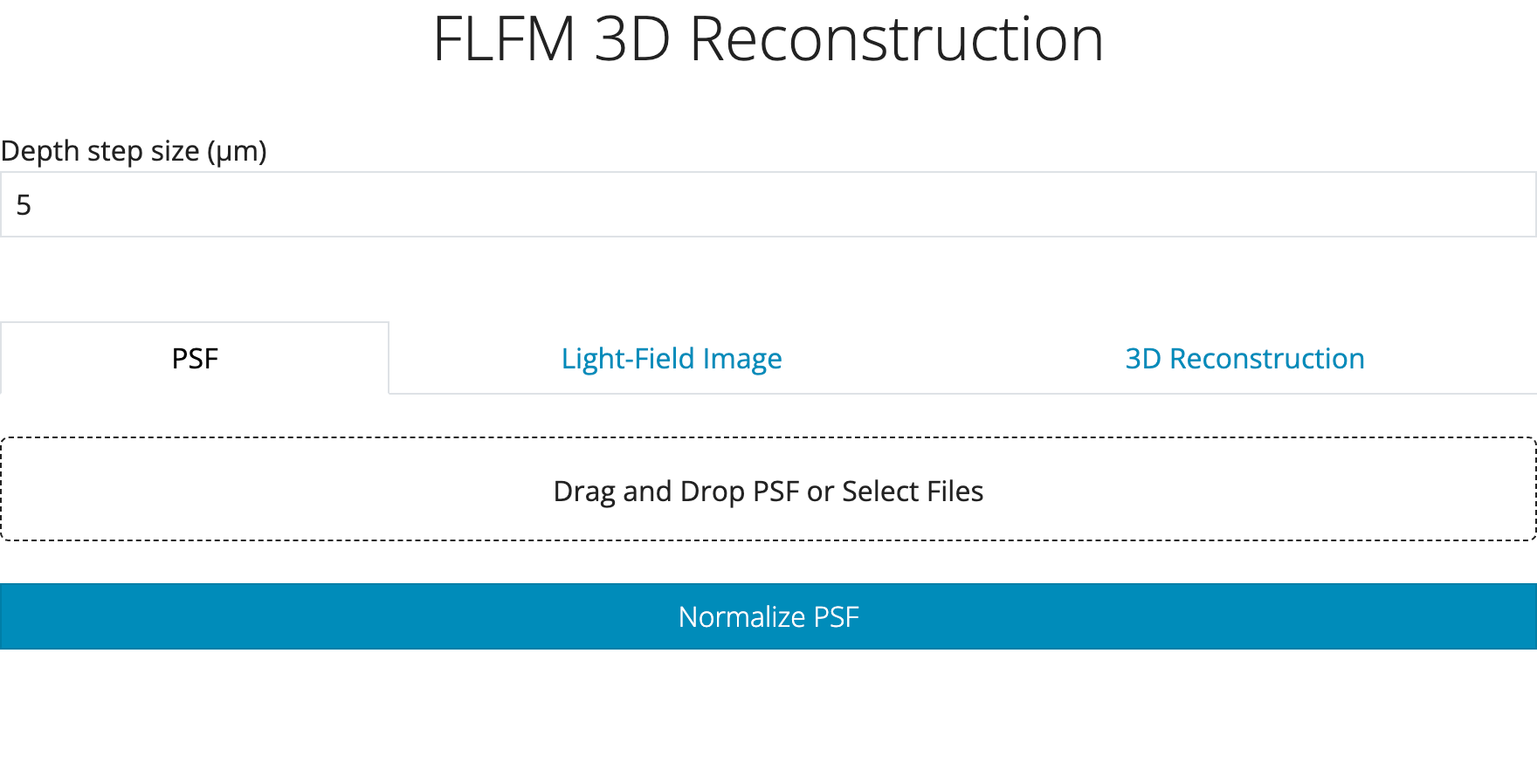
From here the three main tabs: PSF, Light-Field-Image, and 3D Reconstruction are present. Clicking on any of
these tabs will display their corresponding view. Both the PSF and Light-Field-Image tabs are used to load
the relevant files to be reconstructed.
Image files can be loaded by either selecting or by dragging and dropping them to the load section of the page. Upon doing so the image will be displayed, e.g.:
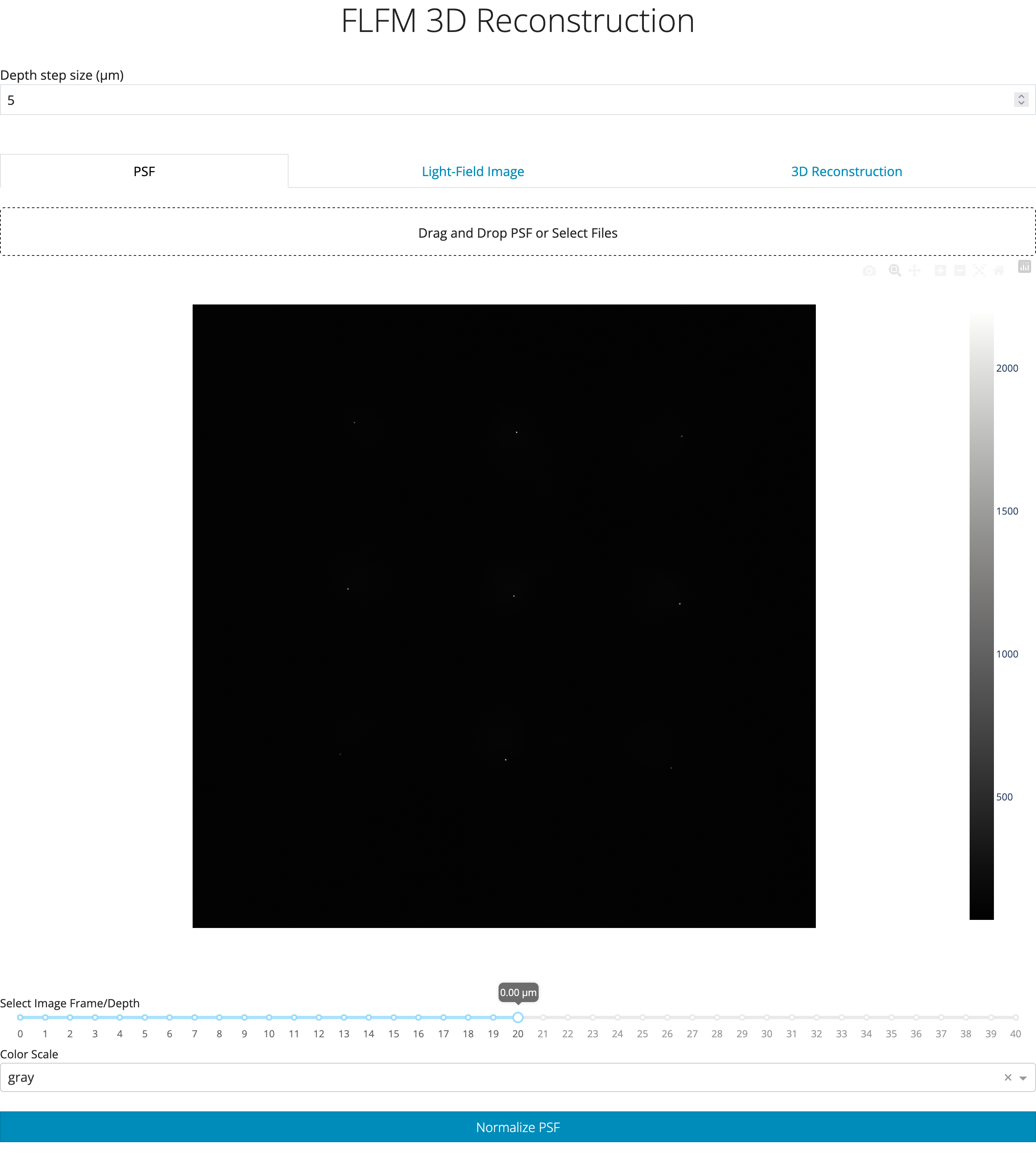
If the PSF has not already been normalized, click on the Normalize PSF button to do so.
Note
The PSF must be normalized for the final 3D reconstruction to be numerically accurate.
Note
The Normalize PSF feature can only be used once per uploaded PSF. The button is disabled once used for
a given PSF. Re-uploading a PSF will re-enable the button.
Additional features are available such as selecting the colorscale, and more importantly the specific frame/depth to display from a multi image TIFF.
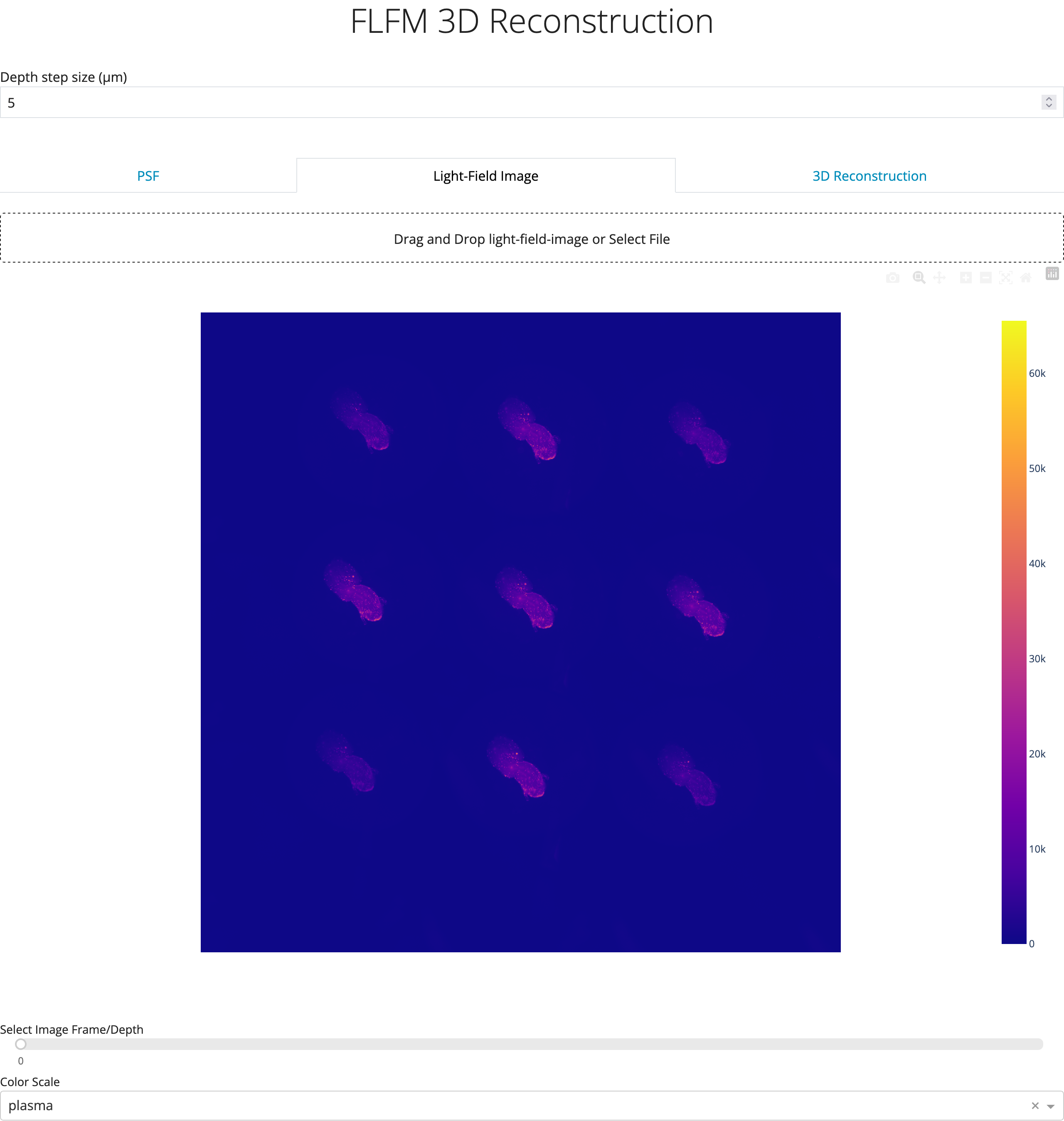
The light-field image to process can be uploaded in exactly the same manner via the Light-Field-Image tab resulting in something similar
to the following.
Note
The default colorscale is grey, however, plasma was selected for the above image.
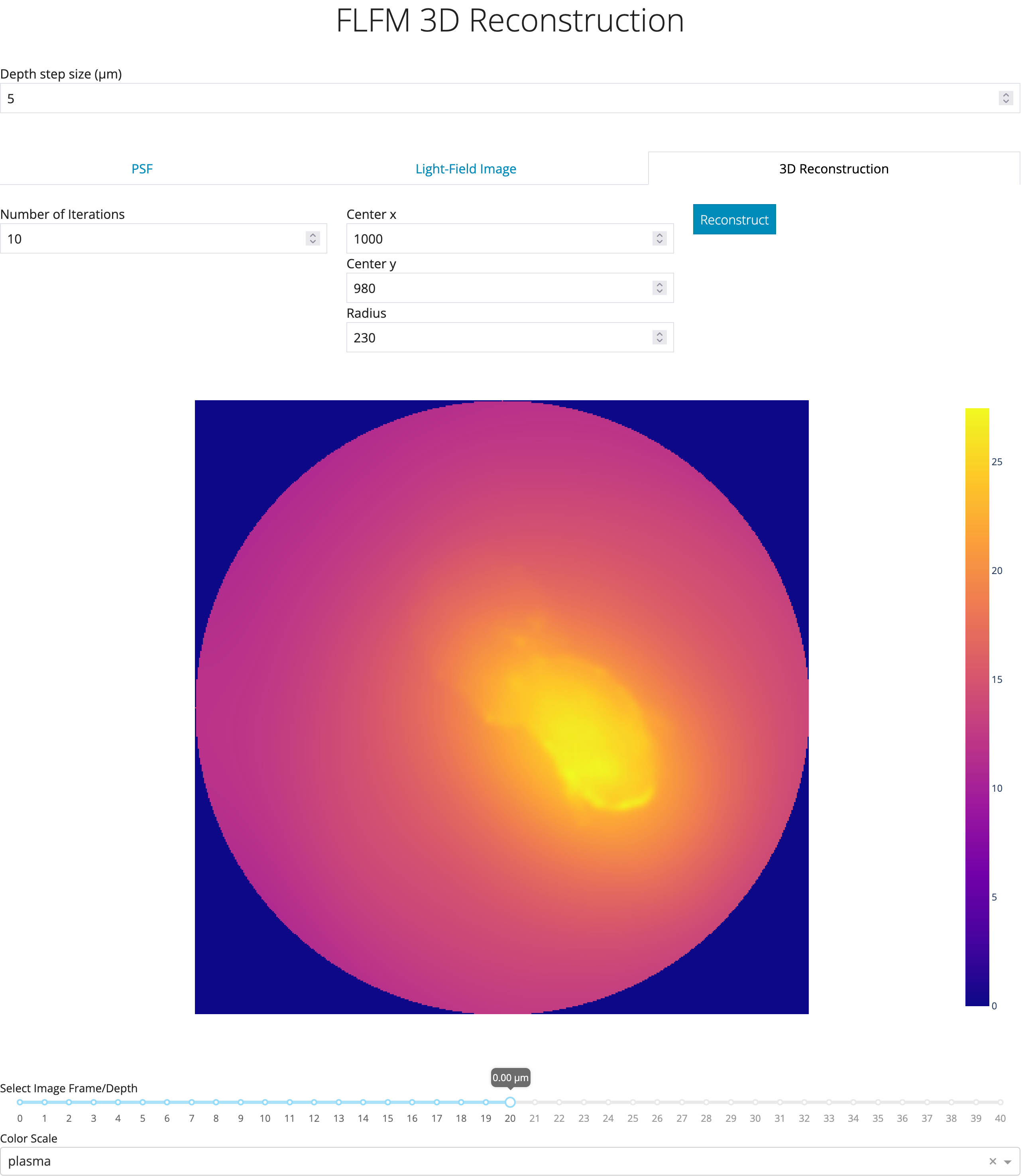
Once both of these input files have been loaded you can select the 3D Reconstruction tab which will look like the following:
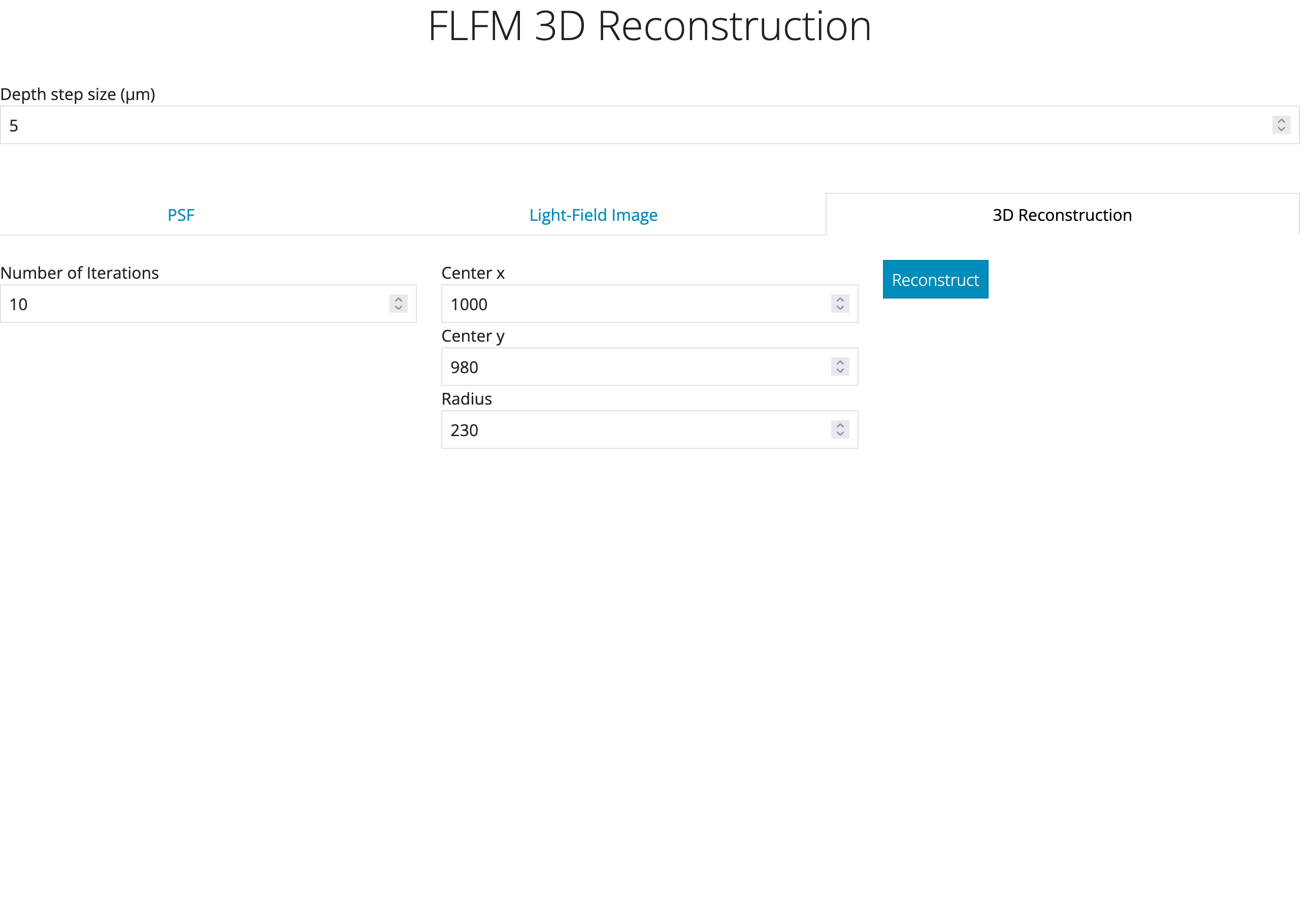
There are a range of parameters that can be adjusted from this tab. The most important are the Depth step size, and the center and radius
parameters in which the final image will be circularly cropped by. These parameters will be completely dependent on your
physical and optical setup. The default values can be changed either by editing the flfm/settings.py file or by using
environmental variables before starting the Dash app, e.g., FLFM_APP_DEPTH_STEP_SIZE=2, or FLFM_DEFAULT_RADIUS=200.
Note
Some env vars have different prefixes, either FLFLM_ or FLFM_APP_. Check
flfm.settings to determine which is needed depending on whether the setting parameter belongs to the
Settings or AppSettings class.
Finally clicking on the Reconstruct button will run the reconstruction algorithm resulting in something similar to the following.
Note
If the Dash application is hosted on hardware with GPU support and the flfm package was correctly installed for GPU support - the
reconstruction should be sub-second. However, if running only a CPU, expect it to take 5-10s.